
2027 Social Media Content Planner Template Notion for Female Creators — How to Use Every Feature
By HerYelle · Last updated on 2026-10-23
A soft content OS for creators who want clarity — not hustle guilt.
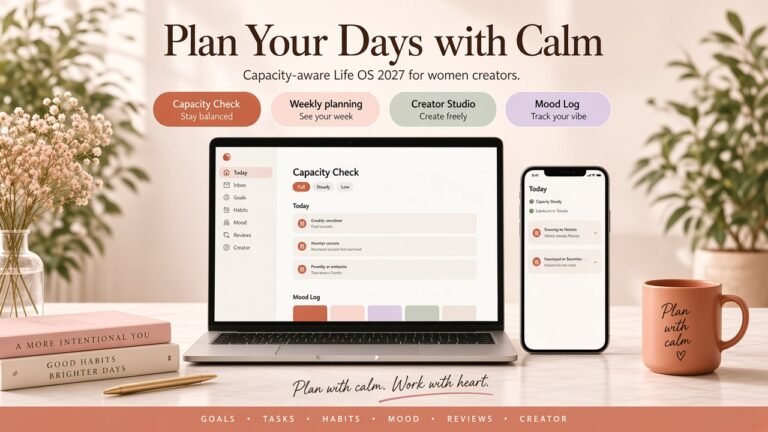
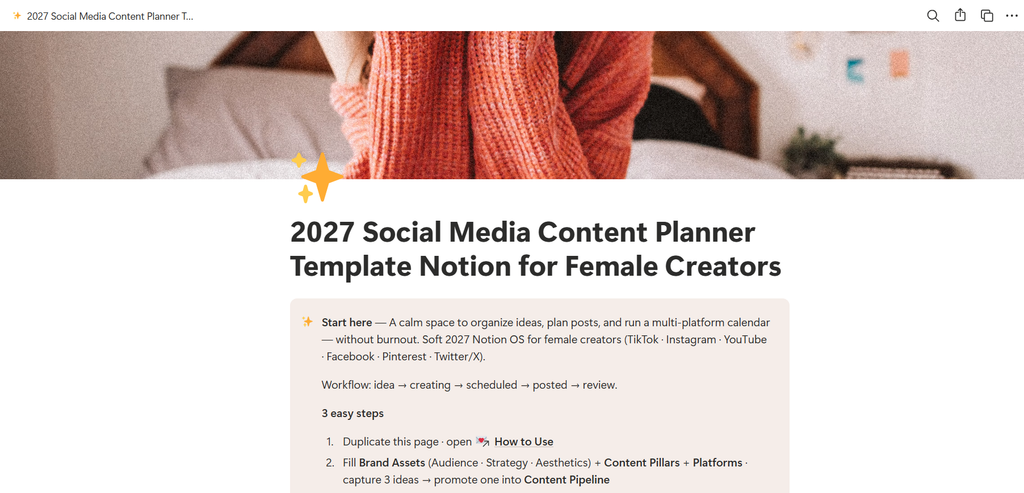
A complete, feature-by-feature usage guide for the 2027 Social Media Content Planner Notion template for female creators — a calm multi-platform content OS with idea → creating → scheduled → posted → review, capacity-aware planning, and no streak pressure.
Who this guide is for
You bought (or are about to buy) the 2027 Social Media Content Planner — or you are reading this guide to decide if it belongs in your toolkit. This page is the full feature walkthrough: what each module is, when to open it, exact steps, tips, and common mistakes — matched to the real fields in the workspace.
The pain this planner is built for
If any of these feel familiar, you are in the right place:
- Blank-page fear — you open Notion or Notes and freeze; ideas live in screenshots, voice memos, and DMs
- Spreadsheet / Notes chaos — captions in one place, hashtags in another, dates in a third; nothing talks to each other
- Multi-platform overwhelm — TikTok · Instagram · YouTube · Pinterest · more — each wants a different format, and your brain is the only “integration”
- Inconsistent posting — you batch once, then disappear for two weeks; guilt stacks faster than content
- No soft review loop — you rarely know which hooks or pillars actually worked, so next month is guesswork again
- Tools that feel too complex or too expensive — full marketing suites for a one-woman (or mom-founder) studio
Who it is for (and who it is not)
Built for:
- Female creators & mom creators who want a calm content OS — capacity-aware weeks, not hustle dashboards
- Soft-life / personal-brand builders growing on 1–3 platforms without a full social team
- Freelance creators & micro-founders who need Idea Bank → Pipeline → calendar → soft analytics in one Duplicate
- Anyone looking for a Notion content planner 2027 with Brand Assets, Pillars, Hashtag Sets, Collabs, Affiliates, and optional creator finance — personal-use and light
Not built for: agencies running 20 client calendars, or anyone who wants a red-metric “growth hack” scoreboard. This is a soft system you can keep.
What you get when you invest (potential upside)
Paying for the template is not buying “another aesthetic page.” It is buying a ready-to-duplicate content OS so you stop rebuilding structure every Sunday.
| If you struggle with… | You gain… |
|---|---|
| Scattered ideas | One Idea Bank that promotes into a real Pipeline card |
| Empty schedule anxiety | Smart Calendar · Posting Schedule · Multi-Platform on one database |
| Weak captions | Fields for Hook · Caption · Hashtags · CTA before you hit Schedule |
| “What should I post?” | Content Pillars • Brand Assets (Audience · Strategy · Aesthetics) |
| Posting into the void | Publish Log • Platform Analytics for gentle pattern-noticing |
| Brand deals in DMs | Collabs · Affiliate Links · Creator Finance without a heavy CRM |
Practical upside many buyers feel in the first 1–2 weeks: faster Day-0 setup (minutes, not a weekend), fewer missed publish dates, captions ready before film day, and a weekly ritual that fits a Low-capacity day — so consistency becomes kind, not punishing.
Some seasons ask for speed. Most ask for steadiness. Use only what serves this season.
How to obtain the template
Ready to use it in your workspace? After checkout on Heryelle / your listing, open the template hub → ··· → Duplicate into your Notion, then follow this guide in your copy. Personal-use license — organize your own content; do not resell the template.
Template hub: 2027 Social Media Content Planner Template Notion for Female Creators
Duplicate first (··· → Duplicate), then follow along in your copy. Inside the template, the nested How to Use in guides is your quick onboard; this page is the full feature guide.
Before you hit Duplicate, scroll to the footer on HerYelle and enter your email under Get the packs & reviews worth your time. Privacy-respecting; unsubscribe anytime.
Getting started — Duplicate
- Your runway before the system becomes habit. Day 0 is Setup + Brand, not a full month of posts.
- When to use?
- Immediately after you Duplicate. Before you customize every view or fill twenty Idea Bank rows.
Step-by-step
- Open the published hub → ··· (top right) → Duplicate.
- Choose your workspace. Wait until every database finishes copying (Platforms, Brand Assets, Content Pipeline, Publish Log, and the rest).
- Open nested How to Use for the 3-step quick start — then return here when you want depth.
- Optional: change the cover to something that feels like home.
- Clear or rewrite sample rows when you are ready — keep any that still resonate.
- Skip optional-feeling modules (Content Resources, Creator Finance) if this season is already loud.
- Tips
- Do not schedule a full month on Day 0. Platforms + Brand Assets + 3 ideas first.
- Personal-use license: organize your own content and business; do not resell or redistribute the template as a product.
Daily / weekly ritual — how features work together
Open Home each workday. Shape posts in Content Pipeline. Close the loop in Publish Log. Everything else is optional seasoning.
Workflow (the spine)
idea → creating → scheduled → posted → review
Mapped to Pipeline status: Idea → In Progress → Waiting for Approval → Changes Needed → Scheduled → Posted → Done

Morning or first creative block (5–15 minutes)
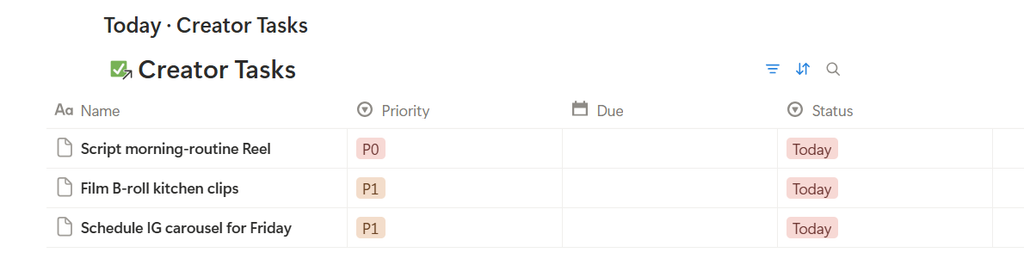
- Skim Today · Creator Tasks on Home — keep Today under 5 tasks.
- Open Active Pipeline — move one card forward (or leave it if capacity is low).
- Capture one spark in Content Ideas if something arrives — no need to produce it yet.
- Optional: check Posting Schedule so today’s publish feels calm, not sudden.
After you publish (3–5 minutes)
- Set Pipeline → Posted (then Done when the loop feels closed).
- Add a Publish Log row: Views · Reach · Likes · Saves · one Notes line.
- Link the log back to the Pipeline card and Platform.
Weekly soft close
Open 🗓️Monthly Planner Hub: shape next week’s Publish Dates, prune Idea Bank (Archive or mark Used), glance at Platform Analytics + Content Analytics, update one Creator Goal Current number if you track goals.
Home dashboard & linked views
What it is?
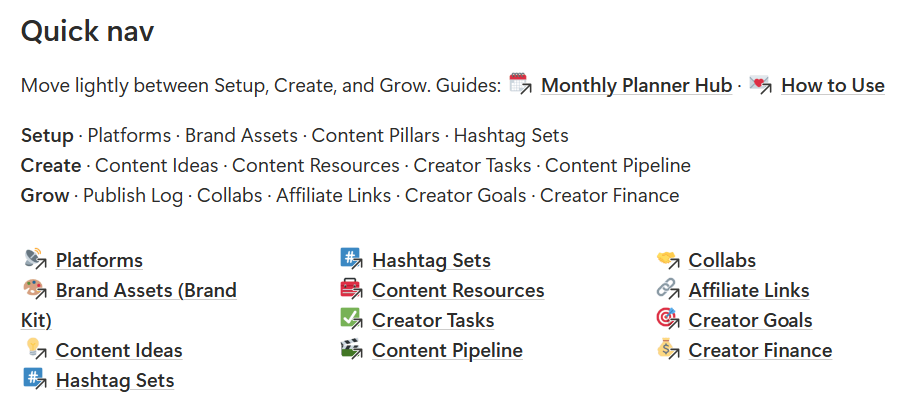
Your calm command surface. Linked views are windows into the same databases — not separate systems. Home groups Setup · Create · Grow, then Dashboard views for Today, Pipeline, calendars, analytics, and money.
When to use?
Daily home base. Start here; drill into full-page databases only when you need schema or every row.
Step-by-step
- Open 2027 Social Media Content Planner Template Notion for Female Creators.
- Read the Start here callout — confirm Brand Assets + Pillars + Platforms are filled enough to post.
- Work Today · Creator Tasks first (under 5).
- Use Active Pipeline for cards in motion.
- Use calendar views (Smart Content Calendar · Posting Schedule · Multi-Platform · Feed Preview) only when planning or publishing.
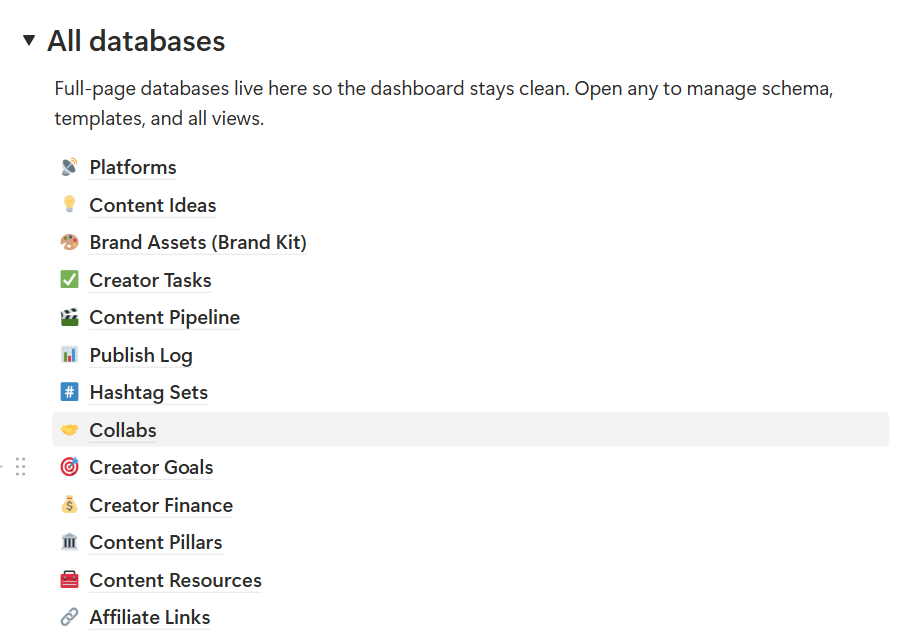
- Expand All databases at the bottom when you need the full-page source.
Tips
- Empty-state tip on Home: Pipeline cards should carry Caption · Hashtags · CTA before you schedule.
- Guides stay one click away: Monthly Planner Hub + nested How to Use.
Common mistakes
- Living only inside full-page databases and forgetting Home — you lose the ritual rhythm.
- Treating every linked view as a different database. Edits sync everywhere.
Platforms (+ analytics view)
What it is?
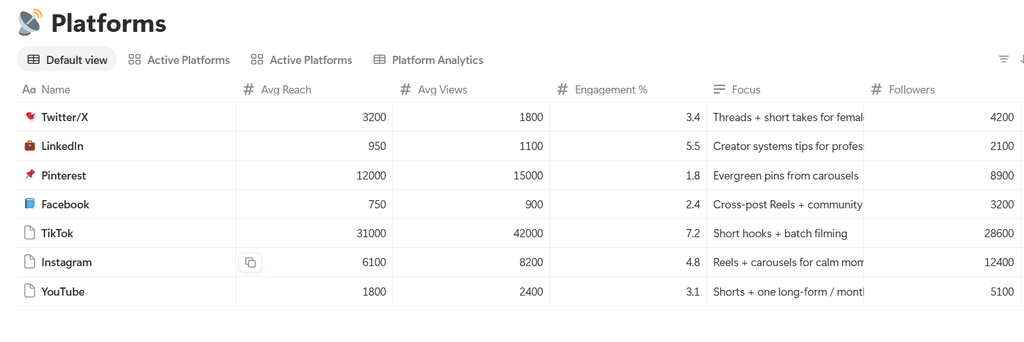
Your channel roster. Fields: Name, Status (Active / Paused / Archived), Profile URL, Focus, Followers, Posts / Month, Avg Views, Avg Reach, Engagement %, Last Snapshot, Notes, relation to Publish Logs.
Home shows My Platforms and Platform Analytics linked views of the same database.
When to use?
Day 0 setup. Monthly when you update snapshots. Anytime you pause a platform without guilt.
Step-by-step
- Open Platforms (or My Platforms on Home).
- Keep only channels you will honestly show up for as Active.
- Set Profile URL and a one-line Focus (what this channel is for).
- Set a gentle Posts / Month target — capacity, not algorithm fantasy.
- Monthly: update Followers · Avg Views · Avg Reach · Engagement % · Last Snapshot.
- Pause or Archive platforms that are resting this season.
Tips
- Paused is stewardship. You can revive a channel without rewriting your whole OS.
- Snapshot numbers are for noticing — not for scoring your worth.
Common mistakes
- Activating six platforms on Day 0 with Posts / Month = 30. Start with 1–2 Active.
- Never updating Last Snapshot — analytics views go stale and stop feeling useful.
Brand Assets (Audience / Strategy / Aesthetics)
What it is?
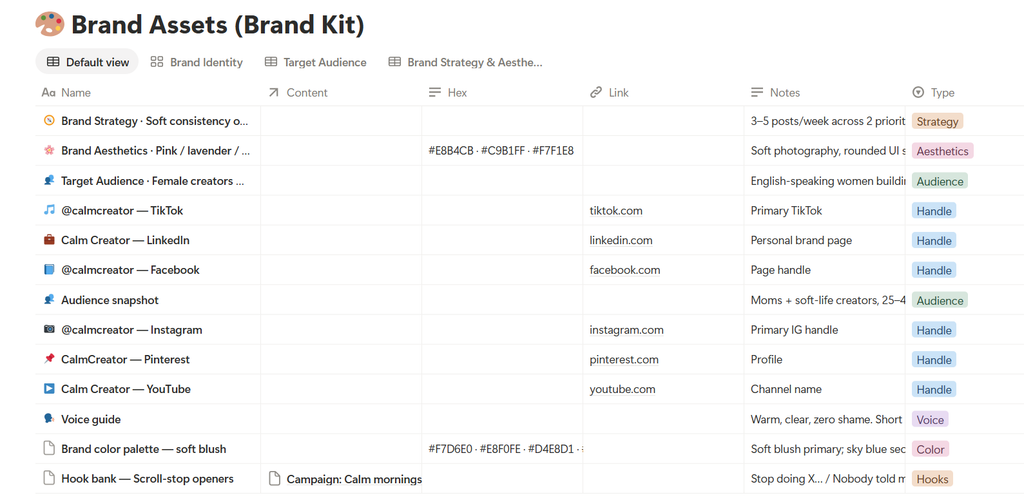
Your Brand Kit. Database title: Brand Assets (Brand Kit). Fields: Name, Type (Logo · Color · Font · Voice · Handle · Audience · Strategy · Aesthetics · Colors · Fonts · Hooks · Templates · Other), Hex, Link, Notes, relation to Pipeline Content.
Home’s Start here calls out the three soft pillars of brand: Audience · Strategy · Aesthetics (each as a Type).
When to use?
Day 0 before you write captions. Anytime your voice drifts or a collab needs brand notes.
Step-by-step
- Open Brand Assets.
- Add rows with Type = Audience, Strategy, and Aesthetics — one clear Notes paragraph each is enough.
- Add Handle · Voice · Colors (Hex) · Fonts · Logo as needed.
- Optional: store favorite Hooks and Templates as Brand Asset rows.
- Link Pipeline cards to Assets only when it helps reuse (not as homework).
Tips
- Voice in one sentence beats a 10-page brand book you never open.
- Hex + Fonts save decision fatigue on batch days.
Common mistakes
- Skipping Audience/Strategy and jumping straight to posting — captions feel hollow by week two.
- Over-filing every Canva file as an Asset. Keep the kit light.
Content Pillars
What it is?
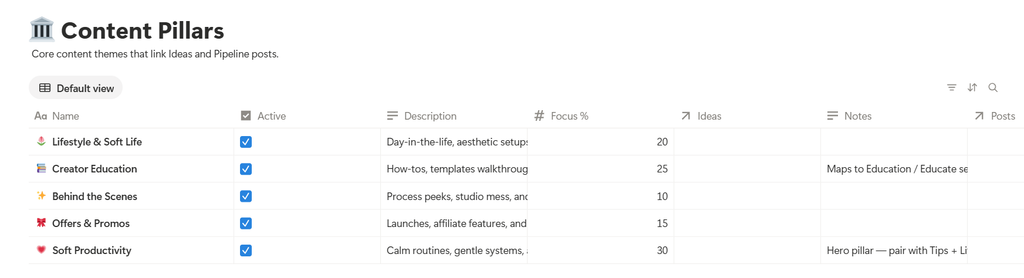
The themes your feed returns to. Fields: Name, Active (checkbox), Description, Focus %, Notes, relations to Ideas and Posts.
Pipeline also has a quick Pillar select (Motivation · Tips · Education · Lifestyle · Promo · Behind the scenes · Other) plus a relation to Content Pillars.
When to use?
Day 0 after Brand Assets. Monthly when Focus % feels off-balance.
Step-by-step
- Open Content Pillars (also on Home Dashboard).
- Keep 3–5 Active pillars with a short Description.
- Set rough Focus % that adds up near 100 (gentle math is fine).
- When capturing ideas or Pipeline cards, link the matching pillar.
- Quiet a pillar by turning Active off — rest is allowed.
Tips
- Pillars prevent random posting. They are not a prison.
- Promo can stay small in Focus % and still pay the bills.
Common mistakes
- Ten Active pillars. Your audience cannot feel a brand with ten centers.
- Never linking posts back — you lose the balance signal.
Content Ideas (Idea Bank)
What it is?
A soft Idea Bank for sparks before production. Fields: Name, Pillar (select), Content Pillars (relation), Notes, Source URL, Used, Archived, relation to Pipeline Content.
When to use?
Anytime inspiration arrives. Weekly when you promote one idea into Pipeline.
Step-by-step
- Open Content Ideas.
- Capture the spark in Name — one line is enough.
- Set Pillar / link Content Pillars if obvious; skip if it slows you.
- Add Source URL for trends or references.
- When ready to produce: create or open a Pipeline card, link Ideas, set Pipeline = In Progress, mark idea Used.
- Archive ideas that no longer fit — release is part of the bank.

Tips
- Cap “about to film” ideas to a handful. A huge unused bank becomes guilt.
- Notes can hold a hook draft before Caption exists.
Common mistakes
- Turning every idea into a Pipeline card immediately. Ideas can stay soft.
- Never marking Used — you will re-pitch the same spark forever.
Hashtag Sets
What it is?
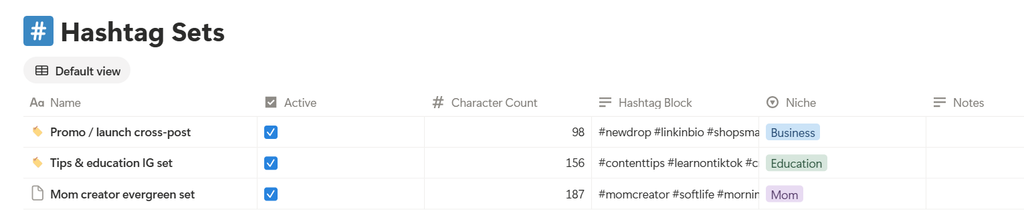
Reusable hashtag blocks. Fields: Name, Hashtag Block, Platform (Instagram · TikTok · YouTube · Cross-post), Niche (Lifestyle · Business · Mom · Beauty · Education · Other), Pillar, Character Count, Active, Notes.
When to use?
Once pillars exist. Before scheduling, copy a block into Pipeline Hashtags.
Step-by-step
- Open Hashtag Sets.
- Create 2–4 Active sets (e.g. Mom + Tips, Lifestyle evergreen).
- Paste the full block into Hashtag Block; note Character Count if a platform is picky.
- Set Platform + Niche + Pillar.
- When scheduling: copy into the Pipeline card’s Hashtags field (edit per post if needed).
Tips
- Cross-post sets are starting points — still tweak for each platform’s culture.
- Keep sets Active only if you still trust them.
Common mistakes
- One giant universal block for every platform. Relevance beats volume.
- Never refreshing sets — dead tags waste caption space.
Content Resources (optional)
What it is?
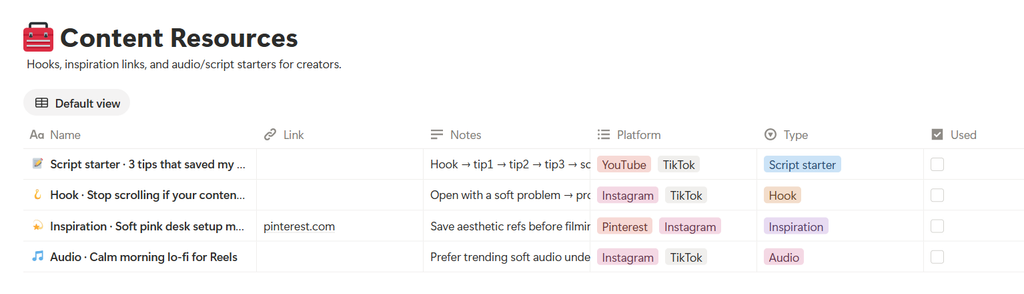
Hooks, inspiration, audio, and script starters. Fields: Name, Type (Hook · Inspiration · Audio · Script starter · Other), Platform (multi), Link, Notes, Used.
When to use?
When a sound, hook, or inspiration link would help you create. Skip entirely if noisy.
Step-by-step
- Open Content Resources (Home linked view or full database).
- Add a row with Type + Link + short Notes.
- Mark Used after it helps a post — or leave it for reuse.
- Delete or ignore the module if you already keep resources elsewhere.
Tips
- One good Hook row can unblock a whole batch afternoon.
- Optional means optional. No guilt for an empty Resources view.
Common mistakes
- Hoarding 80 inspiration links you never open.
- Treating Resources as required homework before every post.
Content Pipeline (statuses, Caption / Hashtags / CTA, Smart Calendar, Posting Schedule, Multi-Platform, Feed Preview)
What it is?
The heart of the planner — one database powering production + calendars. Status property Pipeline:
Idea → In Progress → Waiting for Approval → Changes Needed → Scheduled → Posted → Done
Key fields: Name, Pipeline, Publish Date, Platforms (multi: Instagram · TikTok · YouTube · Facebook · Pinterest · LinkedIn · Twitter/X), Type (Reel · Short · Post · Carousel · Long-form · Story · Live), Pillar, Hook, Caption, Hashtags, CTA, Design Link, Publish URL, Feed Preview (checkbox), Archived, relations to Ideas · Content Pillars · Assets · Tasks · Collab · Publish Logs.
Home / Monthly Hub views of this same database include: Active Pipeline, Smart Content Calendar, Posting Schedule, Multi-Platform Planner, Feed Preview, plus Monthly Planner · Weekly Calendar on the Hub.
When to use?
Whenever a spark becomes a real post. Daily for Active Pipeline; weekly for calendars.
Step-by-step — produce a post
- Create a Pipeline row (or promote from Content Ideas via the Ideas relation).
- Set Pipeline = In Progress.
- Choose Platforms + Type + Pillar / Content Pillars.
- Write Hook, then Caption, Hashtags, and CTA before you schedule.
- Add Design Link when the asset lives in Canva/Drive.
- If someone else reviews: Waiting for Approval → Changes Needed as needed.
- Set Publish Date → Pipeline = Scheduled.
- After publishing: Publish URL + Pipeline = Posted → log metrics → Done when closed.
- Check Feed Preview on visual posts you want in the gallery view.
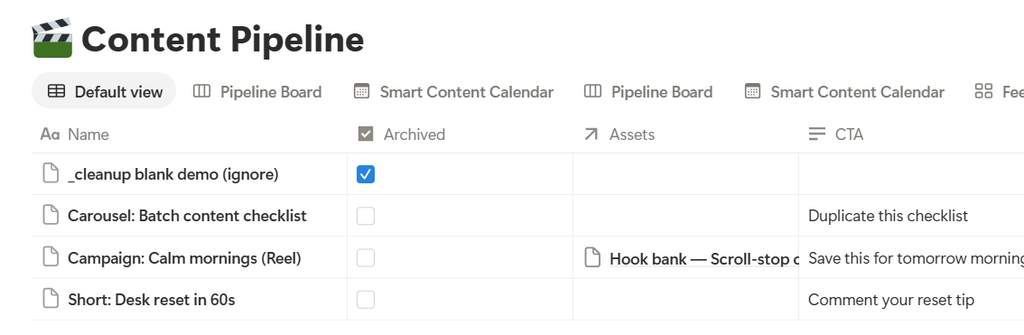
Step-by-step — calendar views
- Smart Content Calendar — date-based overview of Publish Date.
- Posting Schedule — focus on Scheduled / Posted rhythm.
- Multi-Platform Planner — board or group by Platforms without splitting your brain.
- Feed Preview — gallery of cards marked for feed feel.
- Full planning home: Monthly Planner Hub.
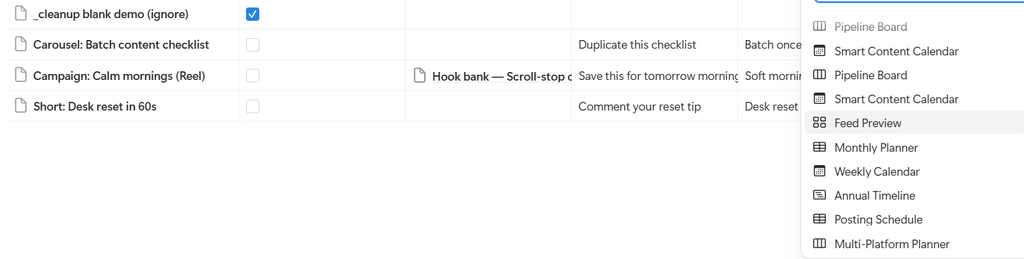
Tips
- Caption · Hashtags · CTA before Scheduled — future-you will thank present-you.
- Waiting for Approval / Changes Needed exist so collabs and brand deals do not live in your head.
- One Pipeline is enough. You do not need twelve spreadsheet tabs.
Common mistakes
- Scheduling empty cards (date set, caption blank).
- Duplicating the same post as six disconnected rows when Platforms multi-select would do.
- Leaving everything in Idea forever — promote or Archive.
Monthly Planner Hub
What it is?
A focused planning page inside the template: Monthly Planner · Weekly Calendar · Posting Schedule · Multi-Platform Planner · Content Analytics (Publish Log). Same Content Pipeline + Publish Log — calmer layout for month/week planning.
When to use?
Weekly planning sessions. Month-start theme setting. Anytime Home feels busy and you want only calendar + metrics.
Step-by-step
- Open Monthly Planner Hub.
- Promote or refine Pipeline cards; fill Caption · Hashtags · CTA · Platforms.
- Set Publish Dates on the Monthly / Weekly views.
- Use Posting Schedule for what is locked vs already posted.
- After publishing, add Publish Log rows in the Hub’s Content Analytics view.
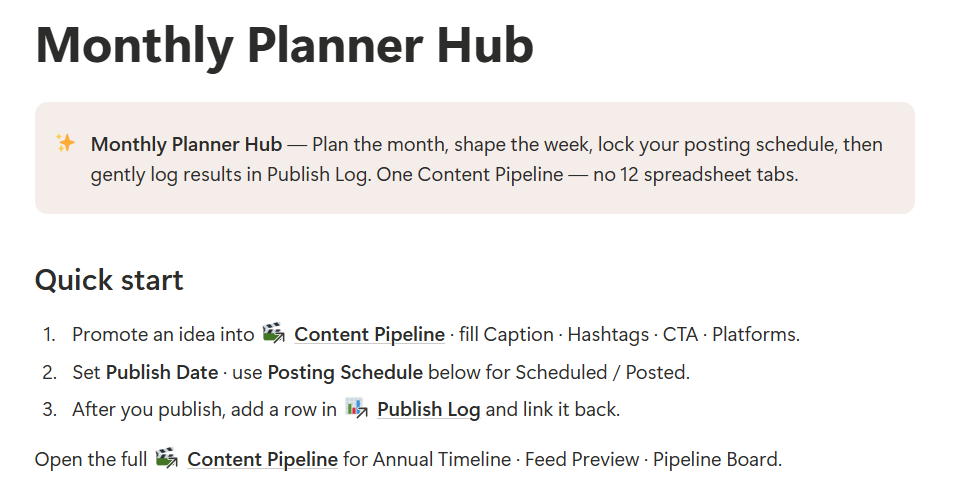
Tips
- Plan the week you can keep — not the week a stranger on the internet would keep.
- Annual Timeline and Pipeline Board live on the full Content Pipeline database if you need them.
Common mistakes
- Building a second calendar elsewhere. Stay in one Pipeline.
- Skipping Publish Log so “what worked” stays a feeling, not a note.
Creator Tasks
What it is?
Light tasking beside content. Fields: Name, Status (Inbox · Today · Doing · Waiting · Done · Someday), Priority (P0 · P1 · P2), Category (Content · Admin · Collab · Analytics · Design · Other), Start, Due, Notes, Archived, relation to Pipeline Content.
Home’s Today · Creator Tasks view is the daily tray.
When to use?
Daily for Today. Anytime a Pipeline card needs a concrete next action (film B-roll, edit, upload).
Step-by-step
- Capture → Status = Inbox.
- Triage to Today, Doing, Waiting, or Someday.
- Keep Today under 5 (Home empty-state tip).
- Link Content when the task belongs to a specific post.
- Finish → Done. Archive old Done when the list feels heavy.
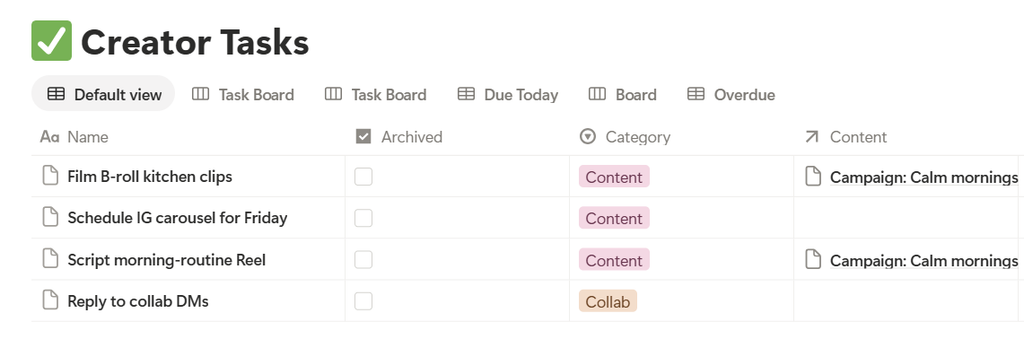
Tips
- P0 is rare. If everything is P0, nothing is.
- Waiting is kinder than fake Doing.
Common mistakes
- Twenty Today tasks. Capacity collapses; trust shrinks.
- Using Creator Tasks as a second Idea Bank — sparks belong in Content Ideas.
Publish Log / Content Analytics
What it is?
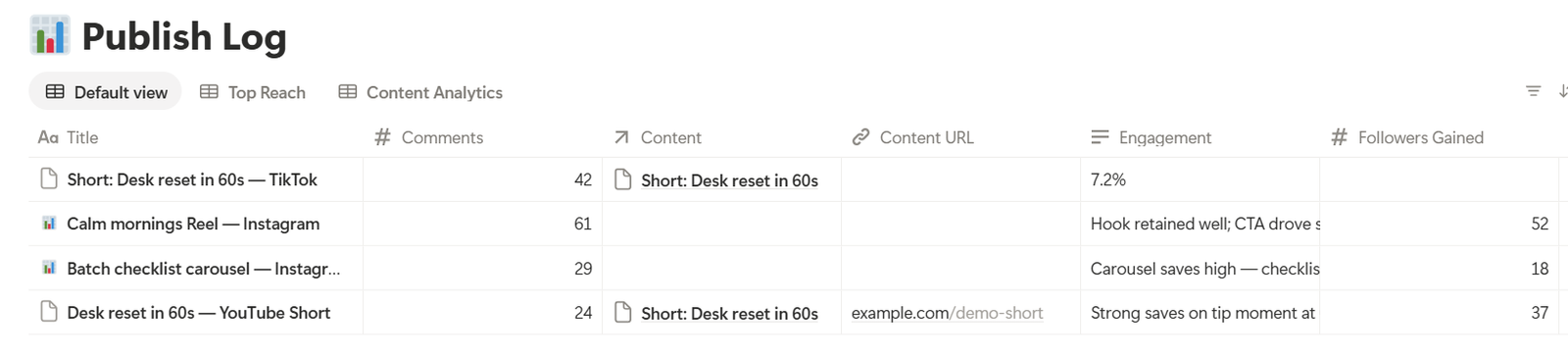
Soft metrics after you publish. Fields: Title, Publish Date, Content URL, Platform (relation), Content (Pipeline relation), Views, Reach, Likes, Comments, Saves, Shares, Link Clicks, Followers Gained, Followers Snapshot, Engagement (text), Notes.
Home shows Content Analytics; Monthly Hub mirrors a Publish Log view.
When to use?
After posting (same day or next calm block). Weekly glance for patterns — not daily obsession.
Step-by-step — gentle weekly checklist
- Add a Publish Log row; title it like the post.
- Set Publish Date + Content URL.
- Link Content (Pipeline) and Platform.
- Fill the numbers you actually care about (Views + Saves is enough for many seasons).
- Write one Notes line: what felt true (hook, timing, format).
- Skim Content Analytics weekly without turning it into a report card.
Tips
- Saves and comments often teach more than vanity views.
- Behind weeks still deserve a log — data includes quiet seasons.
Common mistakes
- Logging every metric every time until you burn out and stop logging.
- Never linking back to Pipeline — you lose the story of what you shipped.
Creator Goals
What it is?
Gentle targets with a Why. Fields: Name, Why, Metric (Followers · Posts · Views · Revenue · Engagement · Other), Period (Weekly · Monthly · Quarterly · Yearly), Target, Current, Progress %, Status (On track · Behind · Hit · Paused), Target Date, Reward, Challenges, Notes.
Home’s Goals Tracker is a linked view.
When to use?
Month start or quarter start. Weekly Current updates if you like numbers. Pause freely.
Step-by-step — Resources
- Open Creator Goals / Goals Tracker.
- Add 1–3 goals with a real Why.
- Choose Metric + Period + Target.
- Update Current and Status (On track / Behind / Hit / Paused).
- Name a small Reward for Hit — kindness, not bribery.
- Write Challenges when life gets loud; adjust Target instead of shaming yourself.

Tips
- Posts-per-month goals should match Platforms → Posts / Month.
- Paused is a valid Status. Resting a goal is strategy.
Common mistakes
- Five Yearly follower goals with no Why.
- Treating Behind as a moral failure instead of a signal to shrink scope.
Collabs
What it is?
Brand and creator partnerships without a heavy CRM. Fields: Name, Status (Lead · Pitching · Active · Done · Passed), Type (Brand · Creator · Affiliate · Other), Brand, Campaign, Contact, Email, Platform, Deliverables, Start, End, Due, Income, Link, Notes. Pipeline can relate a post to Collab.
When to use?
When a brand email arrives, a creator swap is brewing, or a deal needs dates and deliverables in one place.
Step-by-step
- Add a Collab row at Status = Lead or Pitching.
- Fill Brand · Contact · Email · Platform · Deliverables.
- When confirmed → Active; set Start / End / Due and Income if known.
- Link Pipeline cards for each deliverable.
- Finish → Done. Decline kindly with Passed.

Tips
- Passed protects energy. Not every lead is a fit.
- Keep Deliverables short and checkable.
Common mistakes
- Tracking collabs only in DMs — details evaporate.
- Leaving Active forever after the post shipped.
Affiliate Links
What it is?
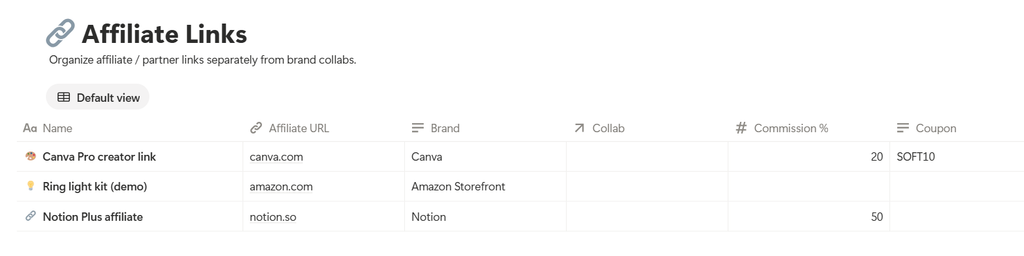
A calm link library. Fields: Name, Brand, Affiliate URL, Platform (Instagram · TikTok · YouTube · Pinterest · Facebook · Twitter/X · Multi · Blog), Commission %, Coupon, Status (Active · Paused · Expired), Notes, relation to Collab.
When to use?
When you mention products often. Before writing CTAs that need a clean URL.
Step-by-step
- Open Affiliate Links (also on Home).
- Add Name · Brand · Affiliate URL · Platform.
- Note Commission % and Coupon if helpful.
- Status = Active only for links you still promote.
- Link a Collab when the affiliate sits inside a partnership.
- Mark Expired when codes die — future-you will not paste dead links.
Tips
- Put the working URL in Pipeline CTA or Caption Notes so you are not hunting mid-schedule.
- Paused is fine during a platform break.
Common mistakes
- One messy notes app of links with no Status.
- Never retiring Expired codes.
Creator Finance (optional-feeling money calm)
What it is?
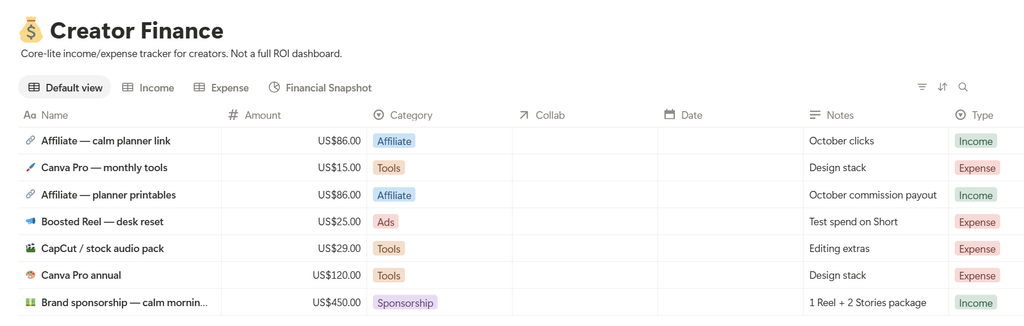
Light money tracking for creator income and expenses — stewardship, not shame. Fields: Name, Date, Type (Income · Expense), Amount, Category (Sponsorship · Affiliate · Product · Tools · Ads · Other), Notes, relation to Collab.
Home’s Financial Dashboard is a linked view.
When to use?
If money tracking in Notion feels supportive. Skip or ignore if you already love another finance app.
Step-by-step
- Open Creator Finance / Financial Dashboard.
- Log Income or Expense with Date + Amount + Category.
- Link Collab when the money belongs to a deal.
- Monthly: skim Income vs Expense without turning it into a lecture.
- If the module feels noisy, leave it empty — optional means optional.
Tips
- Categories are for noticing patterns (Tools creeping up, Sponsorship seasons).
- A coffee for a filming day can count as practice, not perfectionism.
Common mistakes
- Forcing daily money logging when weekly is enough.
- Keeping the dashboard out of guilt when another app already holds your books.
Hub “At a glance” views — how to read them
On Home (and Monthly Planner Hub) you will see linked views. They are windows into the same databases — not separate systems.
| View | Use it for |
|---|---|
| Today · Creator Tasks | Daily tray — keep under 5 |
| Active Pipeline | Cards in motion (Idea → Scheduled) |
| Smart Content Calendar | Date-based Publish Date overview |
| Posting Schedule | What is locked vs already posted |
| Multi-Platform Planner | Plan by Platforms without splitting focus |
| Feed Preview | Visual gallery of feed-ready cards |
| Content Pillars | Theme balance + Focus % |
| Content Resources | Optional hooks / audio / inspiration |
| My Platforms / Platform Analytics | Channel roster + soft snapshots |
| Content Analytics | Publish Log metrics after posting |
| Goals Tracker | 1–3 capacity-aware targets |
| Affiliate Links | Clean URLs + coupons for CTAs |
| Financial Dashboard | Optional Income / Expense calm |
Ritual cheat-sheet
Daily
- Home → Today tasks (≤5) → move one Pipeline card → capture ideas if they arrive → after posting, Publish Log
Weekly
- Monthly Planner Hub: set Publish Dates · prune Idea Bank · glance Platform + Content Analytics · update one Goal Current
Monthly
- Refresh Platforms snapshots (Followers · Avg Views · Engagement % · Last Snapshot)
- Rebalance Content Pillars Focus %
- Review Collabs (Active → Done / Passed) and Affiliate link Status
- Optional: Creator Finance monthly skim
- Revive or rest optional modules (Resources, Finance)
License
Personal-use license: Use this template to organize your own content, creator business, or personal brand. Do not resell, redistribute, share the duplicate as a product, or claim the template design as your own for sale.
You’re ready?
You do not have to use every module. Start with Platforms + Brand Assets + Content Pillars, live in Content Pipeline, plan on 🗓️Monthly Planner Hub, close the loop in Publish Log, and keep Today light. Nested 💌How to Use stays your quick onboard; this guide is here when you want every feature explained.
Get the Notion template — $9.90
One-time payment. After checkout, open the Content Planner and duplicate it into your workspace.
Buy Template — $9.90