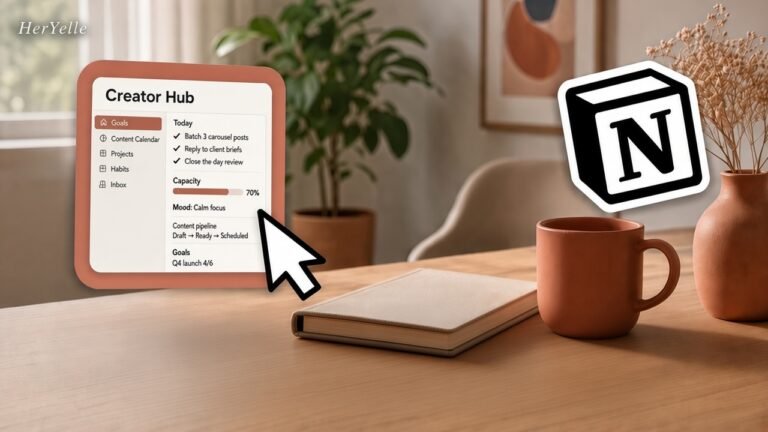
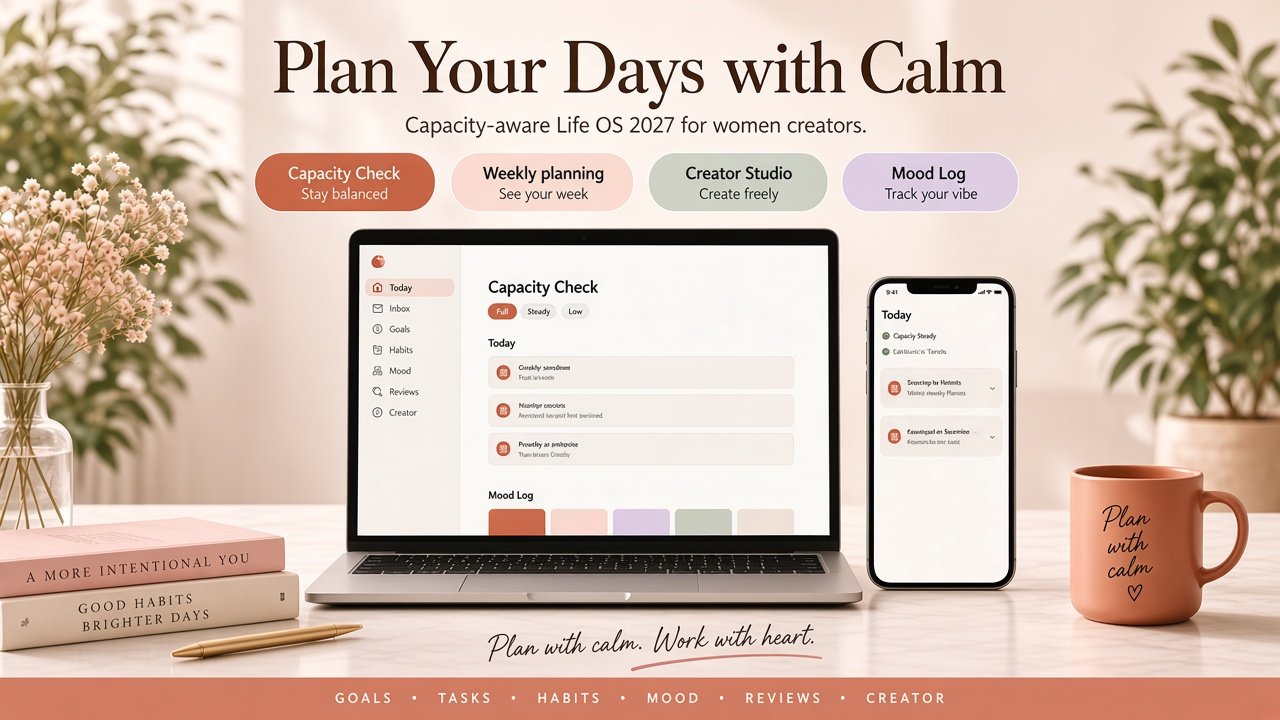
All-in-One Life OS 2027 Digital Planner Template Notion For Female Creator — How to Use Every Feature
By HerYelle · Last updated on 2026-10-15
Plan with calm. Work with heart.
A complete, feature-by-feature usage guide for All-in-One Life OS 2027 Digital Planner Template Notion For Female Creator — capacity-aware planning, fewer commitments, and soft journaling beside your work.
Who this guide is for
You duplicated this Notion digital planner template (or are about to). You want mornings that feel kind, not crowded — an all-in-one Life OS 2027 that works like a calm second brain, not another aesthetic dashboard to abandon. This guide walks every major module: what it is, when to open it, exact steps, tips, and common mistakes — matched to the real fields in your workspace.
This usage tutorial is for you if you are looking for:
- An ADHD-friendly calm planner with honest capacity planning (fewer commitments, not more tabs)
- A soft aesthetic Notion planner 2027 with vision board goals, mood tracker, and a habit tracker without streak guilt
- A content creator planner / freelance dashboard with a gentle weekly review that stays personal-use and light
- A duplicate Notion template that feels like clean-girl calm — without performance pressure or dashboard theater
Some seasons ask for speed. Most ask for steadiness. Use only what serves this season.
How to obtain the template
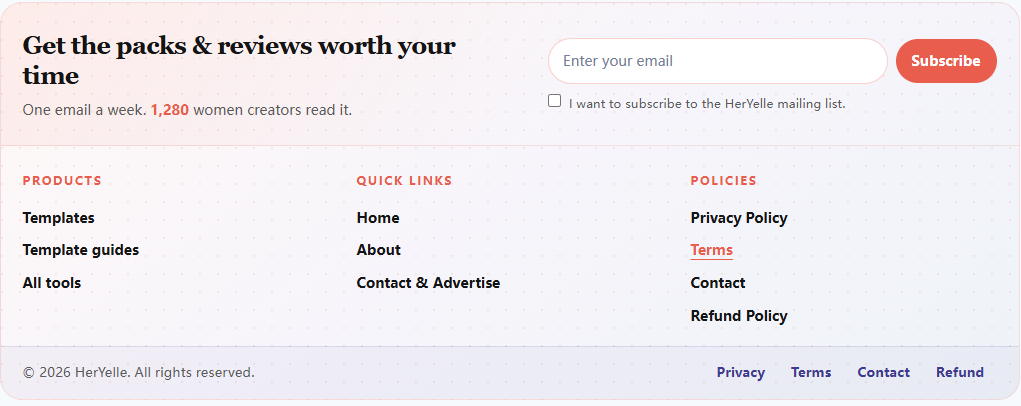
Before you hit Duplicate, scroll to the footer on
HerYelle and enter your email under Get the packs & reviews worth your time. You’ll join women creators who get one calm note a week — and we’ll send your Life OS 2027 Notion template link right after you subscribe (check the box, tap Subscribe). Privacy-respecting; unsubscribe anytime.
Getting started — Duplicate
- Your runway before the system becomes habit. Onboarding is a Day 0–7 checklist on the Onboarding page — skip days if life is loud; the template waits.
- When to use
- Immediately after you Duplicate. Before you customize colors or add twenty goals.
Step-by-step
- Open the published hub → ··· (top right) → Duplicate.
- Choose your workspace. Wait until every database finishes copying (Tasks, Projects, Areas, Mood Log, and the rest).
- Open Onboarding. Work Day 0–7 at your pace.
- Optional: change the cover to something that feels like home.
- Delete optional modules you will not use this season (Money Calm, Creator Studio, Travel & Life) so the hub stays light.
- Clear sample rows when you are ready — keep any that still resonate.
- Tips
- Do not fill every database on Day 0. Capture and Areas first.
- Personal-use license: organize your own life and business; do not resell or redistribute the template as a product.
- Common mistakes
- Customizing views before Inbox dump — you will rebuild them twice.
- Keeping unused optional modules “just in case” — noise becomes guilt.

Daily ritual — How features work together
Open Command Center each morning. Close with Close the Day each evening. Everything else is optional seasoning.
- Morning (5–10 minutes)
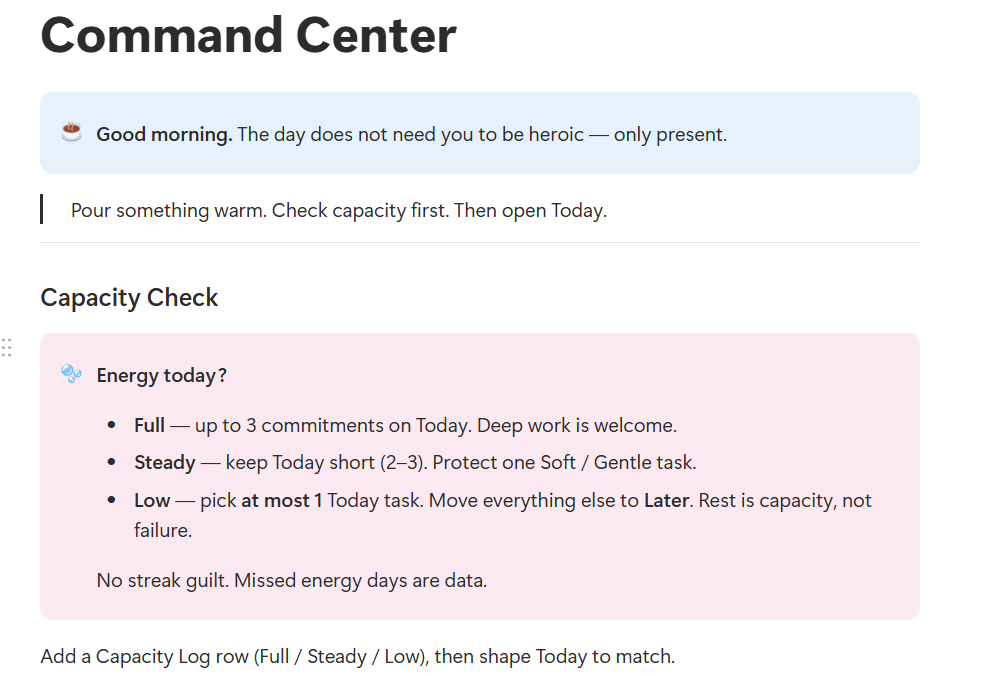
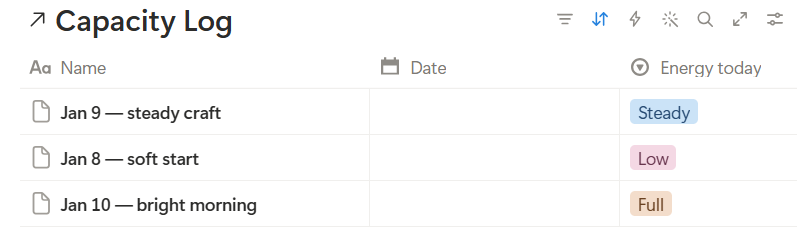
- Capacity Check — add a Capacity Log row: Full / Steady / Low.
- Shape Today to match (≤3 commitments; 1 if Low).
- Name one feeling in Mood Log — no fixing.
- Empty Inbox — Today, This Week, or Later.
- Optional: open Agenda / Daily for Focus + Gratitude.
- Evening (3–5 minutes)
- Open Close the Day.
- Feeling: Heavy · Light · Release.
- One Win + One Next Step.
- Park leftover Today tasks to Later if needed.
- Weekly soft close
- Open Reviews: clear Done, prune Later, set project Next Actions, write one Weekly Review, glance at Mood Log, run Weekly Clear-Out.
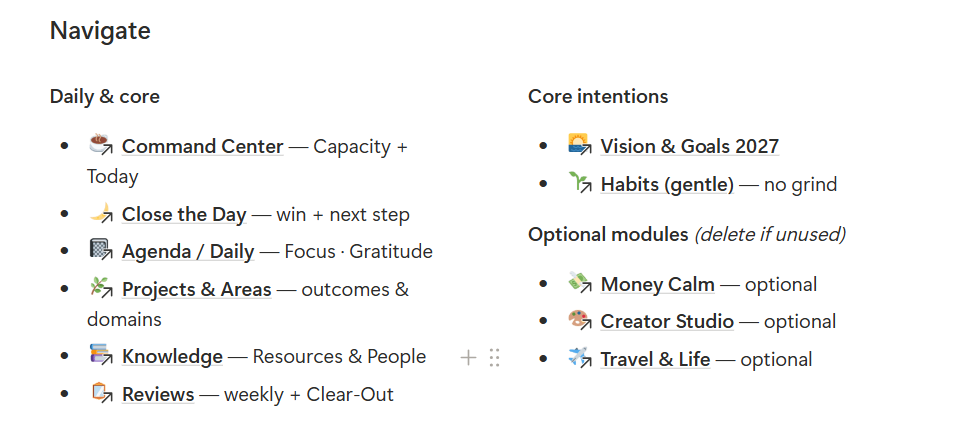
Command Center & Capacity Check
What it is?
Your morning home. Capacity Check asks how much can I honestly hold? before you stack Today. Capacity Log fields: Name, Date, Energy today (Full / Steady / Low), Note.
- Run Capacity Check above.
- Name one feeling in Mood Log (no fixing).
- Look at Today — keep ≤3 commitments (or 1 if Low).
- Empty Inbox — one decision each: Today, This Week, or Later.
- Evening: open
When to use?
Every workday morning — before email, before social, before heroic lists.
Step-by-step
- Open Command Center.
- Add a Capacity Log row. Set Energy today.
- Match Today to capacity:
- Full — up to 3 commitments; deep work welcome.
- Steady — 2–3 items; protect one Soft / Gentle task.
- Low — at most 1 Today task; move the rest to Later.
- Triage Inbox with one decision each: Today, This Week, or Later.
- Skim the parked tray — do not pull everything back onto Today.
Tips
- Rest is capacity, not failure. Low days are data.
- If the list feels heavy, move half to Later. Gentle progress still counts.
Common mistakes
- Logging Full while your body says Low — the dashboard will punish you by noon.
- Treating Later as a shame pile. Later is a parking lot; Clear-Out weekly.
Tasks — Inbox → Today → Done (Post-PARA flow)
What it is?
The heart of the system: a Tasks-first flow. Status path:
Inbox → Today → This Week → Later → Done
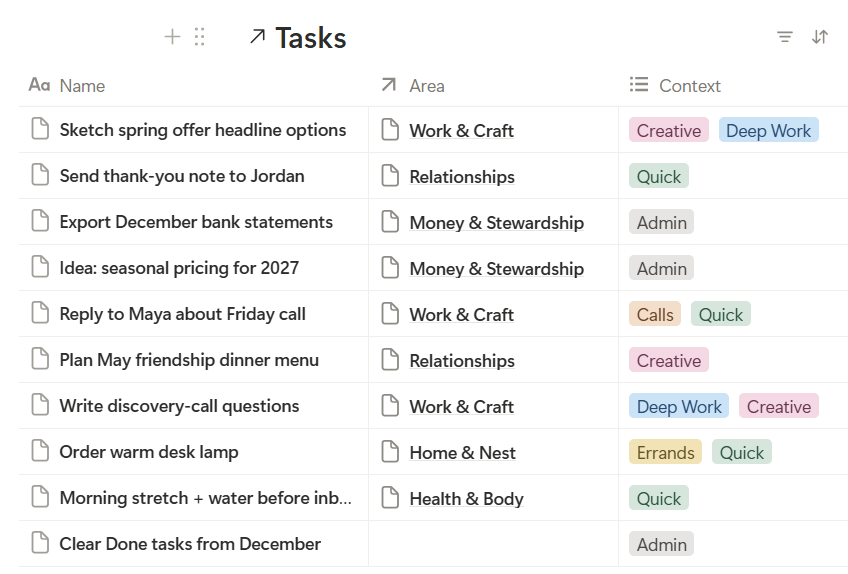
Key fields: Name, Status, Priority (High / Medium / Low), Mood (Energized / Steady / Soft / Heavy), Context (Deep Work, Quick, Calls, Errands, Creative, Admin), Time Estimate (15 min / 30 min / 1 hour / 2+ hours), Due, Project, Area, Notes.
When to use?
Capture anytime. Triage once a day (or when Inbox feels noisy).
Step-by-step
- Capture first. New thought → new Task → Status = Inbox. Do not organize yet.
- Decide kindly. For each Inbox item, choose Today, This Week, or Later.
- Keep Today sacred — ≤3 commitments (or 1 on Low capacity).
- Link lightly. Attach Project or Area only when it helps you act — never as busywork.
- Prefer 15–30 min chunks. If bigger, break it gently or set Time Estimate honestly.
- Match Mood to the task. Heavy days get Soft work.
- When finished → Done. Celebrate small finishes in weekly Wins views.
Tips
- Context tags help batch (e.g. all Quick / Calls in one block).
- Priority High is rare. If everything is High, nothing is.
Common mistakes
- Putting 12 items on Today “for motivation.” Capacity collapses; trust shrinks.
- Linking every task to a Project. Relations are optional tools, not homework.
- Archiving Later forever. Prune weekly — delete what no longer matters.
Close the Day
What it is
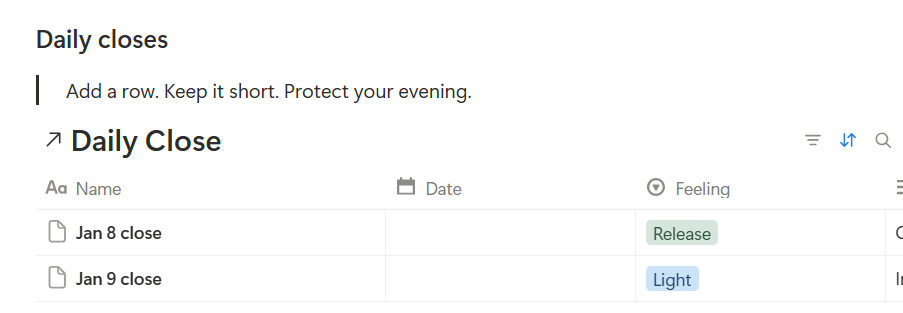
An evening soft-close with no streaks, no EXP, no scores. Daily Close fields: Name, Date, Feeling (Heavy / Light / Release), One Win, One Next Step.
When to use
End of day — before you rebuild tomorrow’s entire plan.
Step-by-step
- Open Close the Day.
- Add a Daily Close row for today.
- Choose Feeling: Heavy · Light · Release.
- Write one win — tiny counts (a soft boundary, a finished paragraph, rest taken on purpose).
- Write one next step for tomorrow — then stop.
- Optional: move leftover Today tasks to Later.
Tips
- Leaving work unfinished is not failure when capacity was low. Closing the day is the win.
- Keep rows short. Protect your evening.
Common mistakes
- Turning Close the Day into a second planning session.
- Skipping wins because they “don’t count.” Soft boundaries count.
Decision Log
What it is?
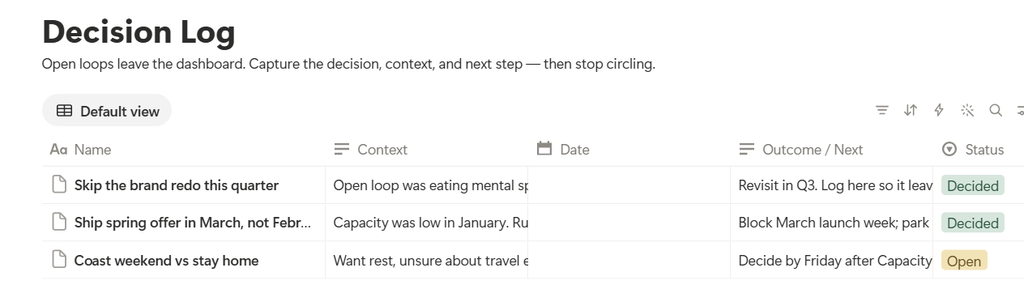
A place for open loops that should leave the dashboard. Fields: Name, Date, Status (Open / Decided / Revisit later), Context, Outcome / Next.
When to use?
When a choice is circling your mind, blocking Today, or surviving Clear-Out week after week.
Step-by-step
- From the hub Open decisions view — or open the Decision Log database.
- Add a row: name the decision in plain language.
- Status = Open. Add brief Context.
- When you choose: Status → Decided, fill Outcome / Next.
- If not now: Revisit later — and set a reminder in Notes or a Later task.
Tips
- Open loops on the dashboard steal calm. Parking them here is kindness.
- Use Clear-Out to move sticky loops off Tasks into Decision Log.
Common mistakes
- Logging every micro-choice. Reserve this for real forks (offer pricing, hire/no-hire, publish/pause).
- Leaving Status Open forever with no revisit date.
Agenda / Daily Notes
What it is?
One page for the day you are actually living. Daily Notes fields: Name, Date, Focus, Gratitude, Brain Dump, Energy (Bright / Steady / Soft / Heavy).
When to use?
Mornings when you want journaling beside tasks — or anytime your head is noisy.
Step-by-step
- Open Agenda / Daily.
- Add today’s page (name it by date if you like).
- Write Focus (one line) and Gratitude (one line is enough).
- Use Brain Dump freely.
- Anything in Brain Dump that needs action → copy into Tasks with Status = Inbox.
- Set Energy to match how the day feels.

Tips
- Capture is kindness; triage is the gift you give future-you.
- You do not need a Daily Note every day. Command Center alone is enough on thin mornings.
Common mistakes
- Leaving action items only in Brain Dump — they will haunt you without Status.
- Writing essays when one Focus line would free the day.
Projects & Areas
What it is?
Projects have a finish line. Areas are domains you tend for a lifetime.
Projects fields: Name, Status (Active / Paused / Done / Someday), Outcome, Next Action, Energy (High / Medium / Gentle), Deadline, Area, Tasks, Notes.
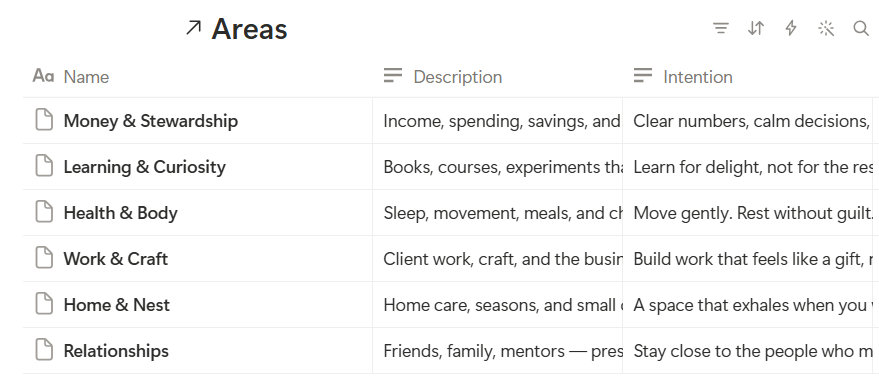
Areas fields: Name, Status (Active / Quiet), Intention, Description, plus relations to Projects, Tasks, Resources.
When to use?
Day 1 of Onboarding for Areas. Anytime an outcome needs a Next Action (Projects).
Step-by-step — Areas
- Open Projects & Areas.
- Keep or rewrite 4–6 Areas with a 2027 Intention one-liner.
- Mark quiet seasons Quiet — rest is stewardship.
Step-by-step — Projects
- Create or pick one Active project.
- Write Outcome (what “done” looks like).
- Write Next Action (the next physical step).
- Set Energy to High / Medium / Gentle.
- Link 1–2 tasks only if it helps you move.
- Pause freely — Paused is a status, not a failure. Use Someday for guilt-only projects.

Tips
- Prefer Gentle energy projects on heavy days.
- Projects end. Areas stay. Do not turn Areas into endless project lists.
Common mistakes
- Twenty Active projects. Cap Active to what capacity can water.
- Empty Next Action — a project without a next step is a wish.
Vision & Goals 2027
What it is?
Soft ambition with a Why. Goals fields: Name, Why, Year (2027 / 2026 / 2028), Status (Dreaming / Active / Paused / Complete), Progress (Seed → Growing → Blooming → Harvested), Milestone, Area.
When to use?
Day 5 of Onboarding; quarterly when seasons change; whenever you feel busy but directionless.
Step-by-step
- Open Vision & Goals 2027.
- Add 2–3 goals with a Why that makes you feel something.
- Set Year = 2027, Status = Active (or Dreaming if still tender).
- Set Progress to Seed; move to Growing / Blooming as life allows.
- Keep Milestone to one sentence.
- Link an Area only when ownership is unclear.

Tips
- Intentions are promises to yourself — not a performance for anyone else.
- Harvested is celebration, not pressure to start the next goal the same day.
Common mistakes
- Ten Active goals. Water fewer plants.
- Goals with no Why — they become chores by February.
Habits (gentle) & Habit Log
What it is?
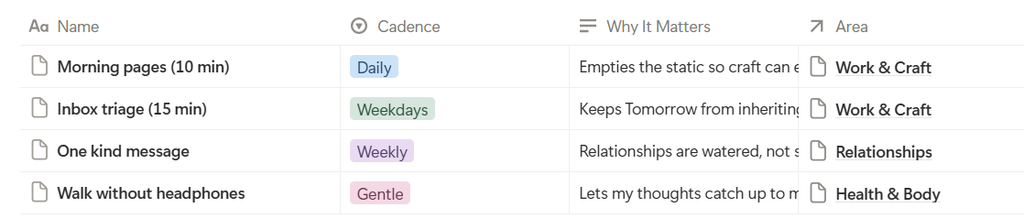
Consistency without grind. Habits fields: Name, Active (checkbox), Cadence (Daily / Weekdays / Weekly / Gentle), Why It Matters, Area. Habit Log records day-to-day checks.
When to use?
Day 5 onward. Daily logging takes under a minute.
Step-by-step
- Open Habits (gentle).
- Activate 3 habits max at first (Active = on).
- Set Cadence honestly — Gentle is allowed.
- Write Why It Matters in one line.
- Each day: add a Habit Log row (or check Done on an existing one).
- Weekly: glance at Done checks. Notice patterns. Adjust cadence if life got loud.
Tips
- Missed days are data, not failure. Soft streaks still count.
- Protect habits like plants on a sunny sill — not like a gym punishment.
Common mistakes
- Eight daily habits on Day 1. Start with three.
- Using streaks as moral score. This template has no streak guilt by design.
Mood Log
What it is?
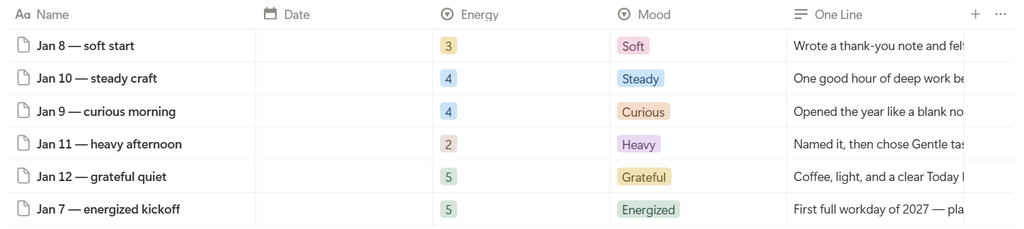
Noticing practice. Fields: Name, Date, Mood (Energized / Steady / Soft / Heavy / Curious / Grateful), Energy (1–5), One Line.
When to use?
Morning ritual (one feeling). Weekly glance during Reviews. Anytime emotions need a name, not a fix.
Step-by-step
- From hub Mood strip or Reviews → Mood Log.
- Add a row for today.
- Pick Mood and optional Energy 1–5.
- Write One Line — no essay required.
- Weekly: skim without judgment. Patterns teach; pressure does not.
Tips
- Naming a feeling is enough. You do not have to solve it in the log.
- Heavy weeks deserve Soft tasks. Light weeks can carry more — if you want them to.
Common mistakes
- Turning Mood Log into a therapy transcript every night.
- Skipping Low capacity days because “I should feel better.” Log them anyway.
Reviews & Weekly Clear-Out
What it is?
A soft landing, not a performance review of your life. Weekly Reviews database + checklist + Clear-Out ritual. Mood Log sits beside Reviews for pattern noticing.
When to use?
Once a week (Sunday evening or Monday morning works well). After noisy weeks, Clear-Out matters more than new goals.
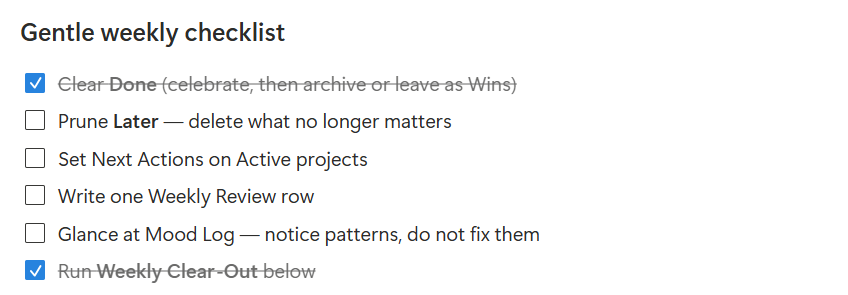
Step-by-step — gentle weekly checklist
- Clear Done (celebrate, then leave as Wins or archive).
- Prune Later — delete what no longer matters.
- Set Next Actions on Active projects.
- Write one Weekly Review row (Feeling + Focus Next Week is enough).
- Glance at Mood Log — notice, do not fix.
- Run Weekly Clear-Out.
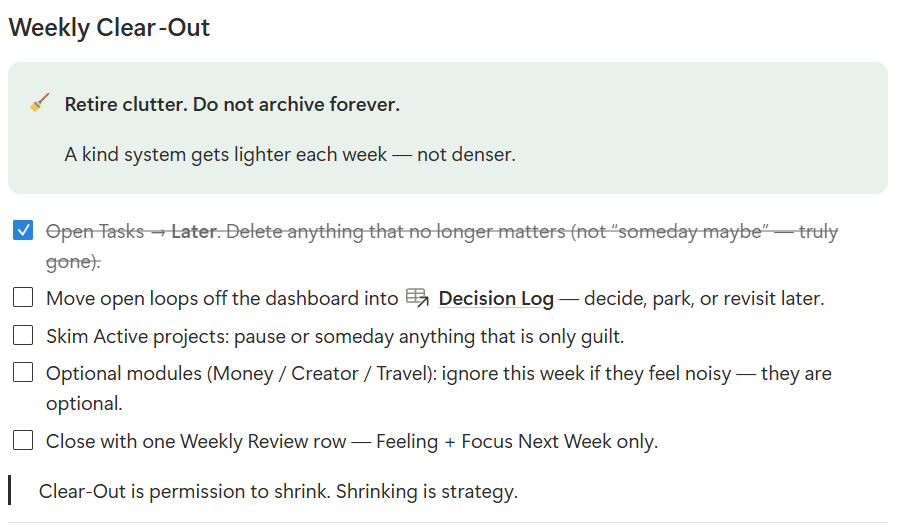
Step-by-step — Weekly Clear-Out
- Open Tasks → Later. Delete anything that is truly gone (not “someday maybe”).
- Move open loops into Decision Log — decide, park, or revisit later.
- Skim Active projects: pause or Someday anything that is only guilt.
- Optional modules (Money / Creator / Travel): ignore this week if noisy.
- Close with one Weekly Review row.
Tips
- Clear-Out is permission to shrink. Shrinking is strategy.
- A kind system gets lighter each week — not denser.
Common mistakes
- Skipping Clear-Out and only adding more trackers.
- Writing a novel in Weekly Review. Feeling + Focus is enough.
Knowledge — Resources & People
What it is?
Resources = books, links, notes worth keeping close. People = a kindness list (not a heavy CRM) for follow-ups as care.
When to use?
When you save something worth returning to. When a relationship needs a five-minute check-in, not a funnel.
Step-by-step — Resources
- Open Knowledge.
- Add a Resource with a clear title and why it nourishes you.
- Link to an Area when useful.
- Periodically release what clutters.

Step-by-step — People
- Add a person with Role if helpful (e.g. Client / Friend).
- Set one kind follow-up — a date or note is enough.
- Keep check-ins human. A five-minute message often means more than a perfect plan.

Tips
- Creators: reuse People (Role = Client) for relationship care without a separate CRM.
- Resources are for returning to — not for hoarding tabs.
Common mistakes
- Building a full CRM inside People. Keep it light.
- Never deleting stale Resources. Release is part of Knowledge.
Money Calm (optional)
What it is?
Light finance without shame. Money Log fields: Name, Date, Amount, Flow (In / Out), Category (Income / Studio / Home / Care / Travel / Tools / Other), Note. Includes a Monthly Snapshot page.
When to use?
If money tracking feels supportive. Skip entirely if it feels noisy — delete the page and Money Log from your duplicate.
Step-by-step
- Open Money Calm (or delete the module if unused).
- Log income and outflows with a kind Note.
- Set Flow and Category so patterns emerge gently.
- Once a month, open Monthly Snapshot: three lines — what came in, what went out with care, what you want next month to feel like.

Tips
- Stewardship, not spreadsheets-as-punishment. Even a coffee count as practice.
- Categories are for noticing, not for perfection.
Common mistakes
- Forcing daily money logging when weekly is enough.
- Keeping the module out of guilt when you already have a finance app you love.
Creator Studio (optional)
What it is?
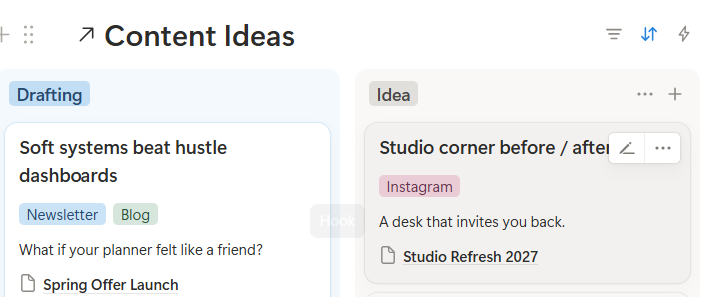
A soft landing for ideas. Content Ideas fields: Name, Status (Idea → Drafting → Ready → Published / Paused), Platform (Newsletter, Instagram, YouTube, X, Blog, Etsy, Other), Hook, Project, Notes.
When to use?
If you ship content. Delete the page and Content Ideas database if you do not — no guilt.
Step-by-step
- Open Creator Studio.
- Capture sparks as Status = Idea.
- Add a Hook line early — it can save a whole afternoon of staring.
- Move Idea → Drafting → Ready → Published at your pace.
- Paused is allowed. Link a Project when the idea supports a launch or offer.
- Reuse People for client care via Knowledge — no heavy CRM needed.
Tips
- Publish when it feels ready — not when the algorithm shouts.
- One Hook beats a blank page.
Common mistakes
- Building a 40-idea backlog and never drafting. Cap Active drafting to 1–3.
- Treating Paused as failure. Pause is part of craft.
Travel & Life (optional)
What it is?
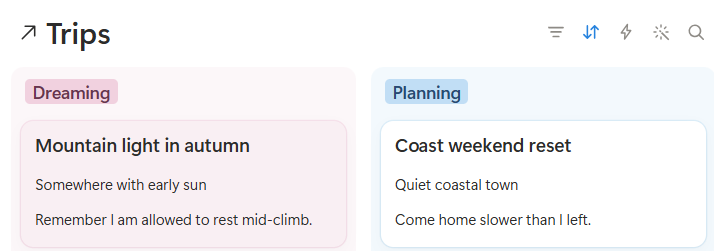
One lean trip tracker — destination, dates, packing notes, and the mood you hope to bring home (Trips database).
When to use?
When a trip is calling. Delete Travel & Life (and Trips) if you are not planning trips this season.
Step-by-step
- Open Travel & Life.
- Add a trip: destination, dates, packing notes.
- Note the mood you want to bring home (restore, not just impress).
- Status can stay Dreaming until Booked — dreaming is allowed; Away is sacred.
Tips
- Trips that restore nervous systems outperform trips that only look good online.
- Keep packing notes short and reusable.
Common mistakes
- Overbuilding itineraries inside Notion when a simple Trips row is enough.
- Keeping the module forever when you have no trips — delete to reduce hub noise.
Hub “At a glance” views — how to read them
On the main hub you will see linked views. They are windows into the same databases — not separate systems.
| View | Use it for |
|---|---|
| Today — ≤3 commitments | Capacity-aware daily focus |
| Parked / Later tray | Kind parking; Clear-Out weekly |
| Wins this week | Celebrate small Done finishes |
| Mood strip | Name a feeling; no fixing |
| Open decisions | Loops that left the dashboard |
| Goals · Active | Intentions you are watering |
| Habits · Recent | Soft consistency check |
| Creator · Pipeline | Optional — skip if unused |
| Inbox | Capture before triage |
| Active projects | Outcomes + Next Actions |
Ritual cheat-sheet
Daily
- Capacity Check → Today (≤3) → Mood → Inbox triage → evening Close the Day
Weekly
- Reviews checklist + Clear-Out + one Weekly Review row + Mood glance
Seasonal
- Refresh Vision & Goals Progress
- Revisit Areas Intentions
- Delete or revive optional modules